





LevitateOS documentation
Post-Installation
After rebooting, log in with your user account and start using your new LevitateOS system. Administrative commands go through sudo.
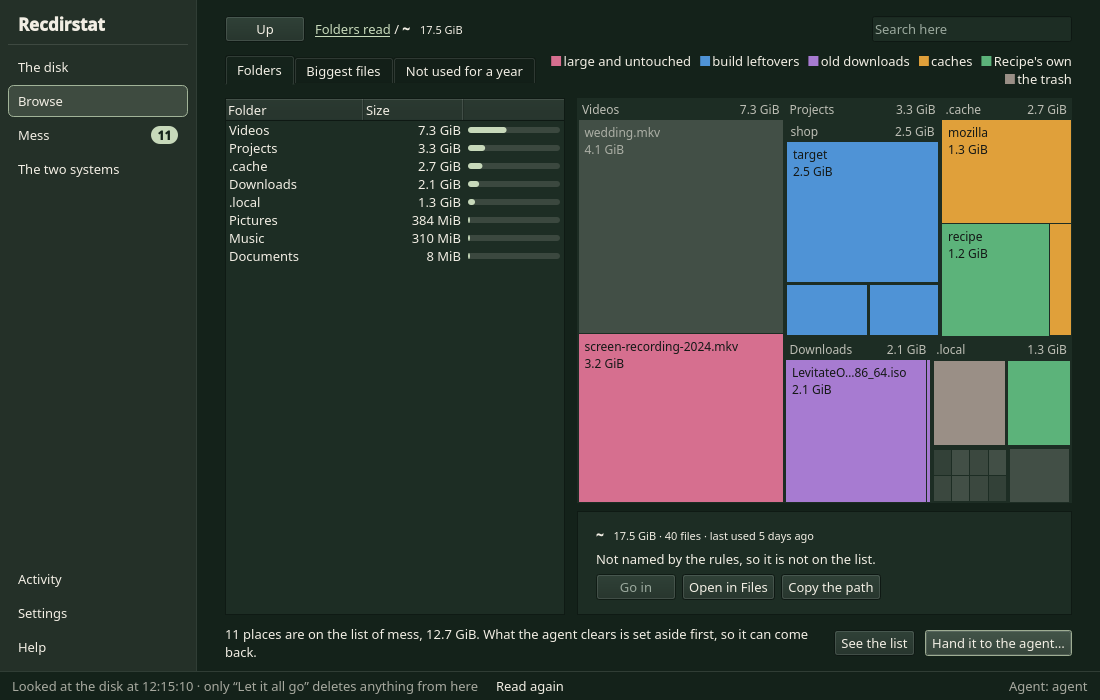
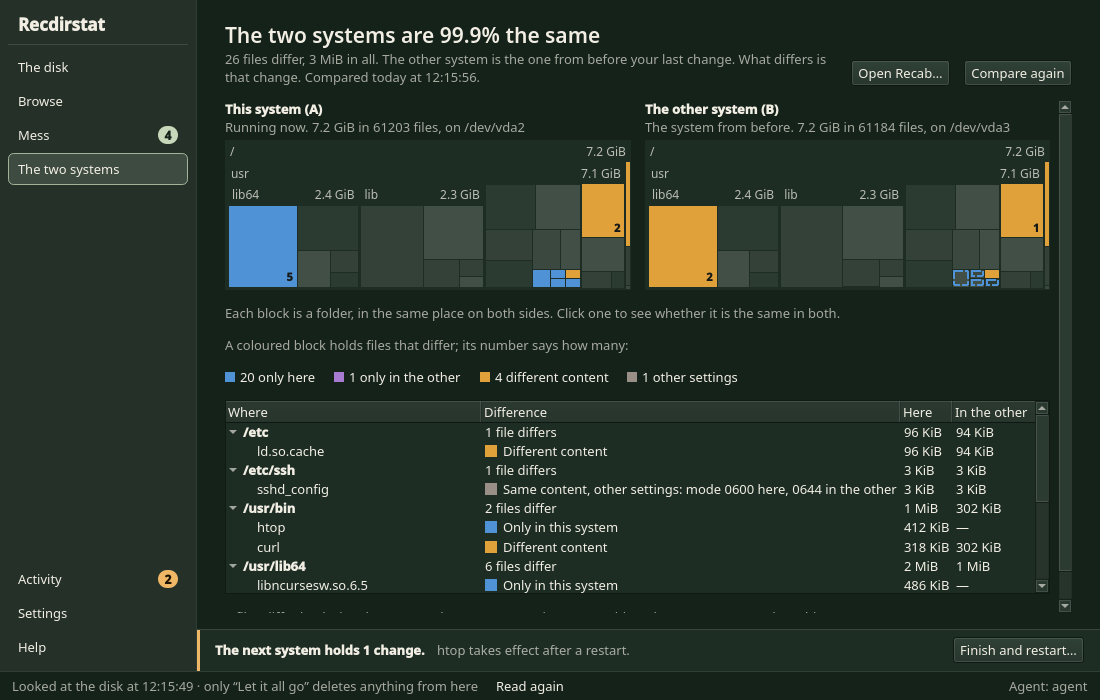
Desktop
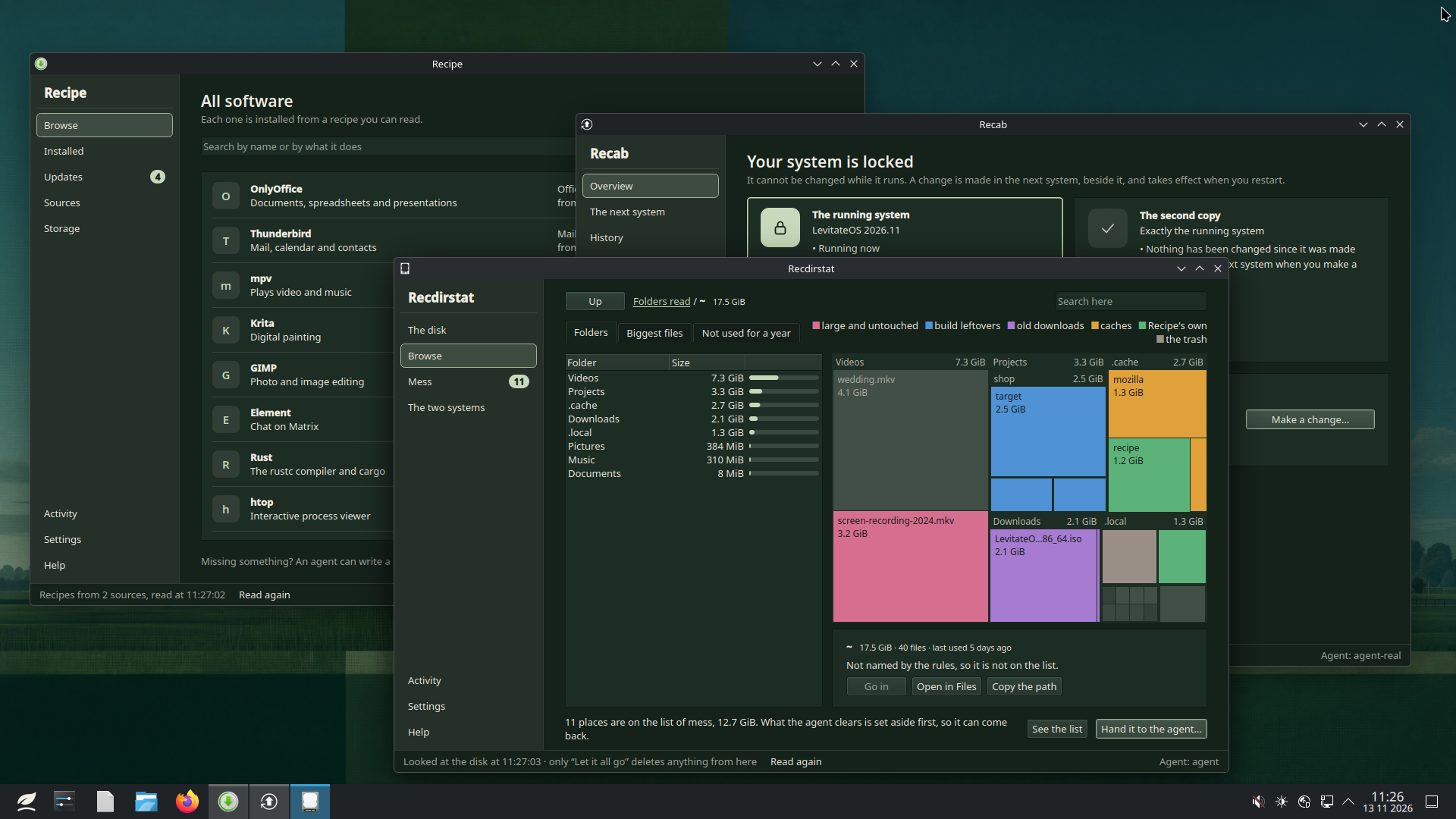
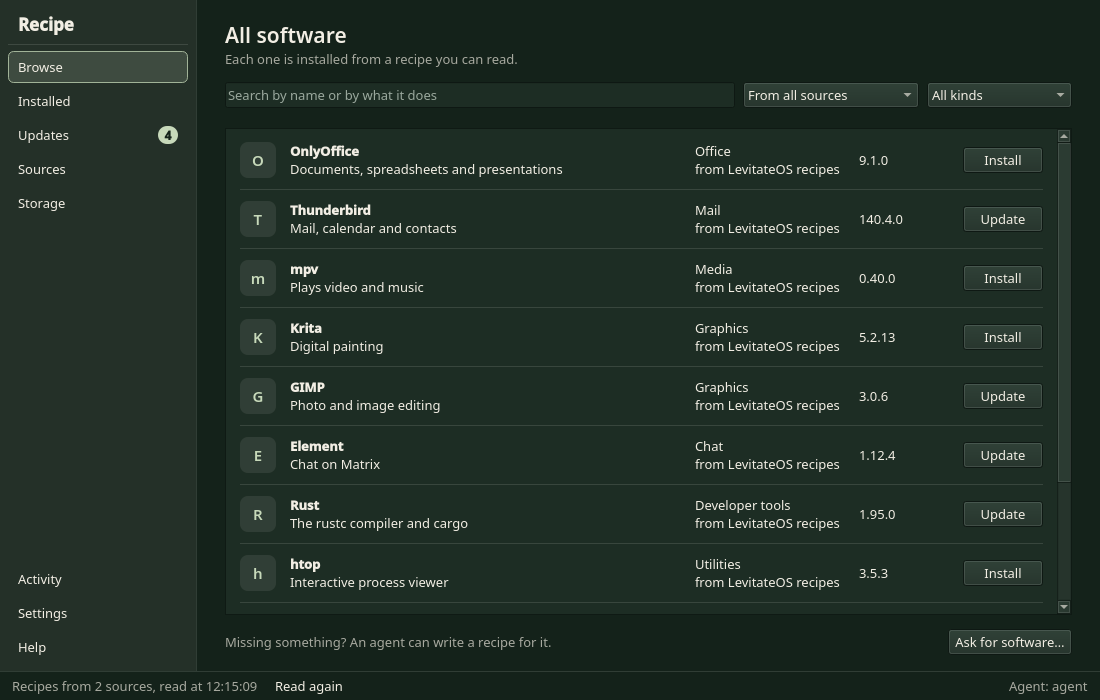
The desktop edition uses KDE Plasma. Open the applications menu with the icon at the bottom left. The desktop is software installed through Recipe, like the apps: Recipe lists it, and you can remove it or install a different desktop there. Removing the last desktop is allowed and leaves a text login. Recipe is the window for finding and managing software; Recab shows the two roots: the booted one, locked, and the other, unlocked; Recdirstat shows where disk space goes. The screenshots on the website show development previews with sample data.
Services
systemctl list-units --type=servicesudo systemctl enable --now SERVICEOn A/B installations the booted root is locked, so ordinary /etc cannot be changed in the running root. Make the change in the other root, which is unlocked and mounted at /run/recab/other, then run recab boot-other and reboot. Mutable installations have one root, changed in place, and no recab.
Software with Recipe
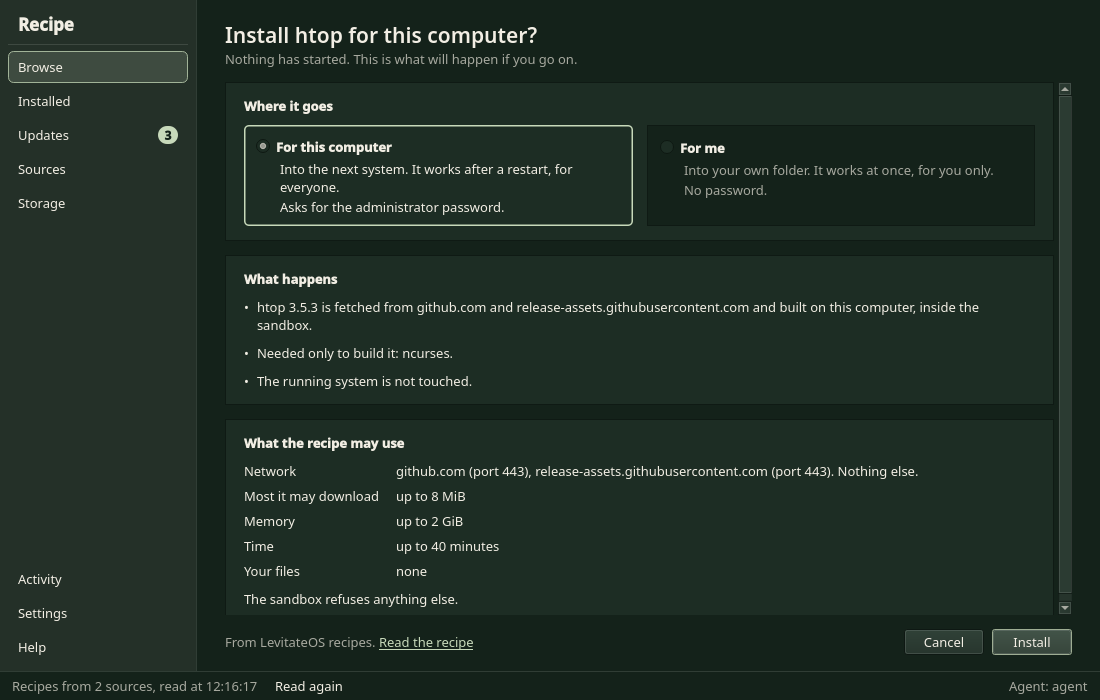
On A/B installations, root's Recipe package commands write system software into the other root, which is unlocked. The catalog starts with ripgrep, which provides rg. The booted root stays unchanged; run recab boot-other and reboot to start the root that holds the change. Mutable installations have one root, and Recipe changes it directly. The Recipe page explains how recipes, sources, scopes and isolation work.
sudo for installation. On older images or a development host, follow the Recipe README to select the launcher and verified image.sudo recipe list
sudo recipe info ripgrepsudo recipe --system install ripgrep
sudo recab boot-other
sudo reboot
# After the other root has started:
rg --versionsudo recipe installed
sudo recipe update ripgreprecipe update ripgrep runs the currently selected recipe and applies its pinned version to the other root after successful production. Run recab boot-other and reboot to start it. It does not fetch an unpinned upstream release or edit the recipe's version and checksum. An administrator can also maintain a recipe override in /var/lib/recipe/recipes.
sudo recipe remove ripgrepRemoval uses the installed receipt, so it works without the source recipe or a Ginux runtime. It removes only unchanged owned files, retaining other owners and refusing administrator edits. Run recab boot-other and reboot to start the root without it. recipe installed reports active and prepared receipts, whereas recipe list lists available recipes.
System software is in the booted root's /usr/lib/recipe/profile; login adds its commands and ordinary users' independent profiles to PATH. Root's immutable-system commands do not activate the shared /var/lib/recipe/profile. When using a custom --package-root DIR, add DIR/profile/bin to your shell's PATH.
Name lookup checks the mutable catalog at /var/lib/recipe/recipes before the image's /usr/share/recipe/recipes. A same-named local recipe overrides the shipped one. --recipes-path or RECIPE_PATH selects one collection explicitly. See the CLI Reference and Recipe Format for authoring and producer-only execution.
The Two Roots
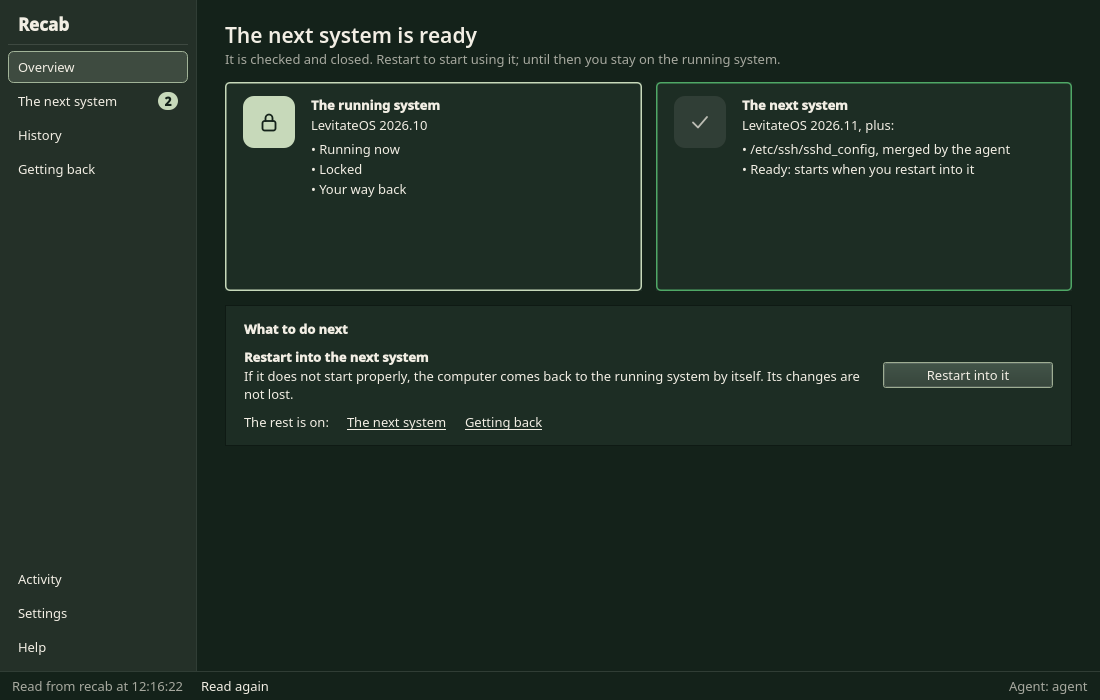
An A/B installation has two roots, A and B. The booted root is locked. The other root is unlocked, and changes are made there. Boot the other root and the roles swap. If a root does not finish starting, the machine starts the previous root again. Mutable installations have no recab and no A/B.
sudo recab statussudo recab copyrecab copy overwrites the other root, so anything written into it before is gone. Use it to start changes from the running system. See A/B Roots for how a change lands.
Disk Usage
Open Recdirstat and choose Browse to see folders and a map of their sizes. Select a folder to inspect it before deciding what to keep. The two systems page compares the running system with the other root.
Next Steps
- For KDE Plasma, install from the desktop ISO: Installation: From the Desktop ISO
- Set up development tools and editors
- Review Troubleshooting if you encounter issues